
WordPress Security Checklist for October 2026: 10 Things to Check Before Your Website Gets Hacked
Learn how to secure your WordPress website in 2026 with our practical checklist covering updates, plugins, backups, malware scanning and hosting security.
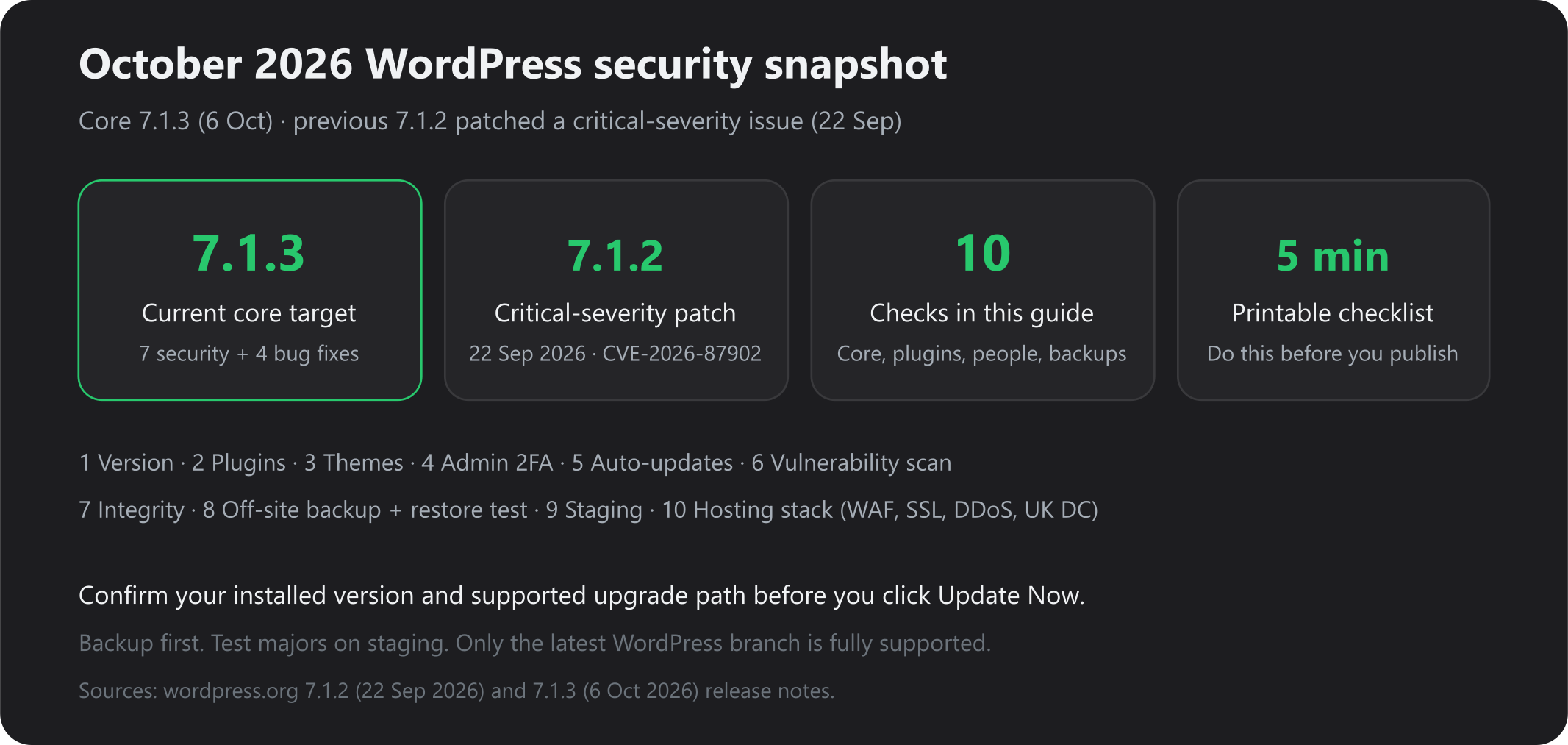
WordPress 7.1.3 shipped on 6 October 2026 with seven security fixes and four bug fixes. Two weeks earlier, 7.1.2 (22 September) patched a critical-severity issue in core (CVE-2026-87902). If your site is still on 7.1.1 or an unpatched older branch, you are behind two security releases.
This is not a “panic and click Update Now” post. It is a WordPress security checklist you can reuse for months: confirm the version you actually run, patch on a supported path, then lock down plugins, admins, backups and the host. You can follow every item without buying anything. Fast2Host WordPress hosting and WP Toolkit simply make the same jobs faster.
1. Why WordPress security matters in 2026
WordPress remains the default CMS for UK SMEs, WooCommerce shops and agency client sites. Attackers do not need a clever 0-day when they can:
- Hit thousands of sites still running last month’s core
- Abuse an abandoned contact-form or page-builder plugin
- Guess
admin/ reused passwords with no 2FA - Find a host with no WAF, no account isolation and backups that have never been restored
Core hardening in 7.1.2 / 7.1.3 only helps if you install it. Plugin and account hygiene is still where most real compromises start.
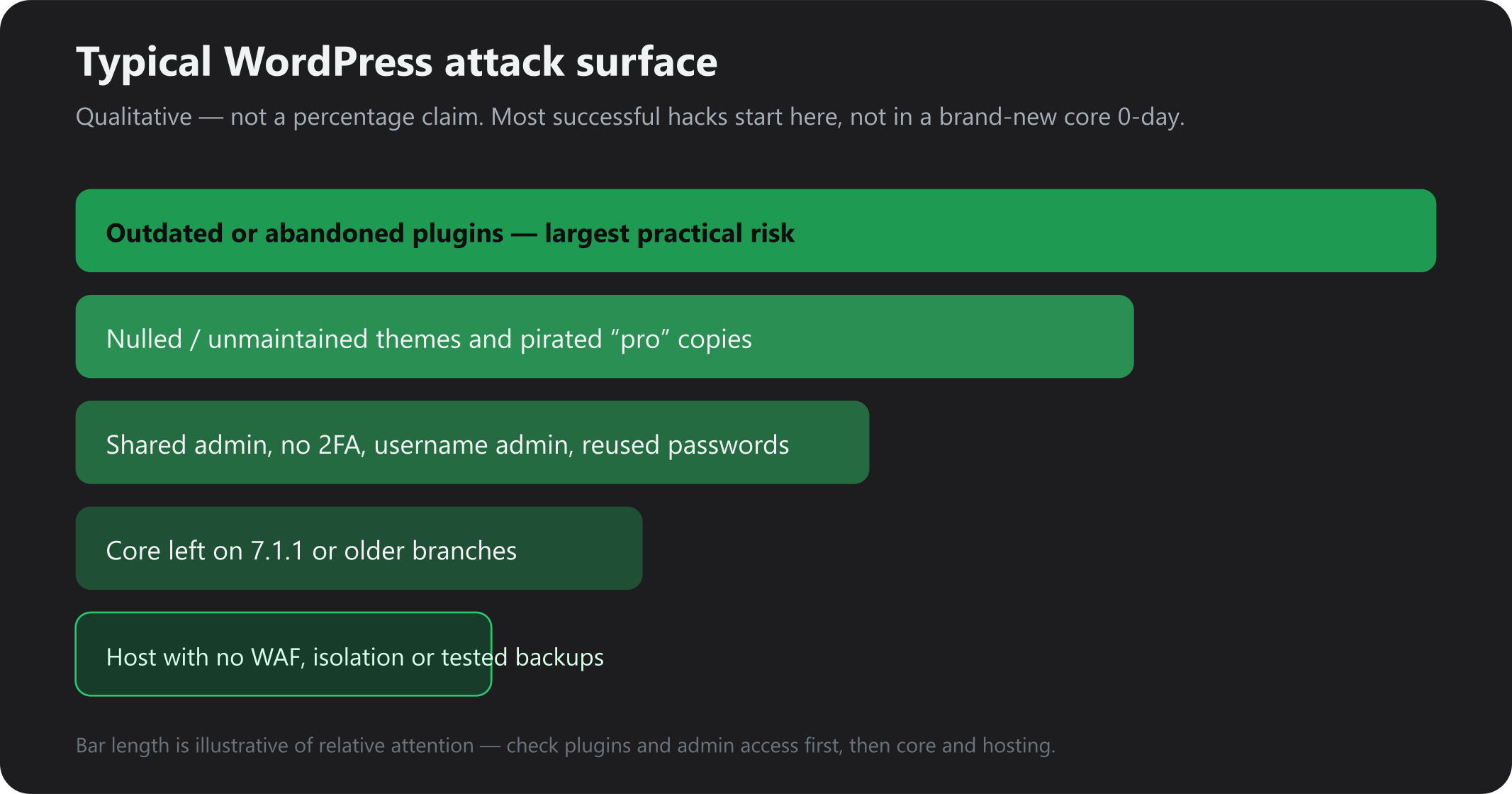
Bar length is qualitative. Check plugins and admin access first — then core and hosting.
A UK host still matters: data residency, a real telephone NOC, and a stack that includes Imunify360, ModSecurity, daily Acronis backups and edge DDoS — not a security plugin pretending to be a data centre. See DDoS protection for UK businesses and why Cambridge still matters.
2. The latest WordPress security updates explained
Official notes:
- WordPress 7.1.2 — 22 September 2026
- WordPress 7.1.3 — 6 October 2026
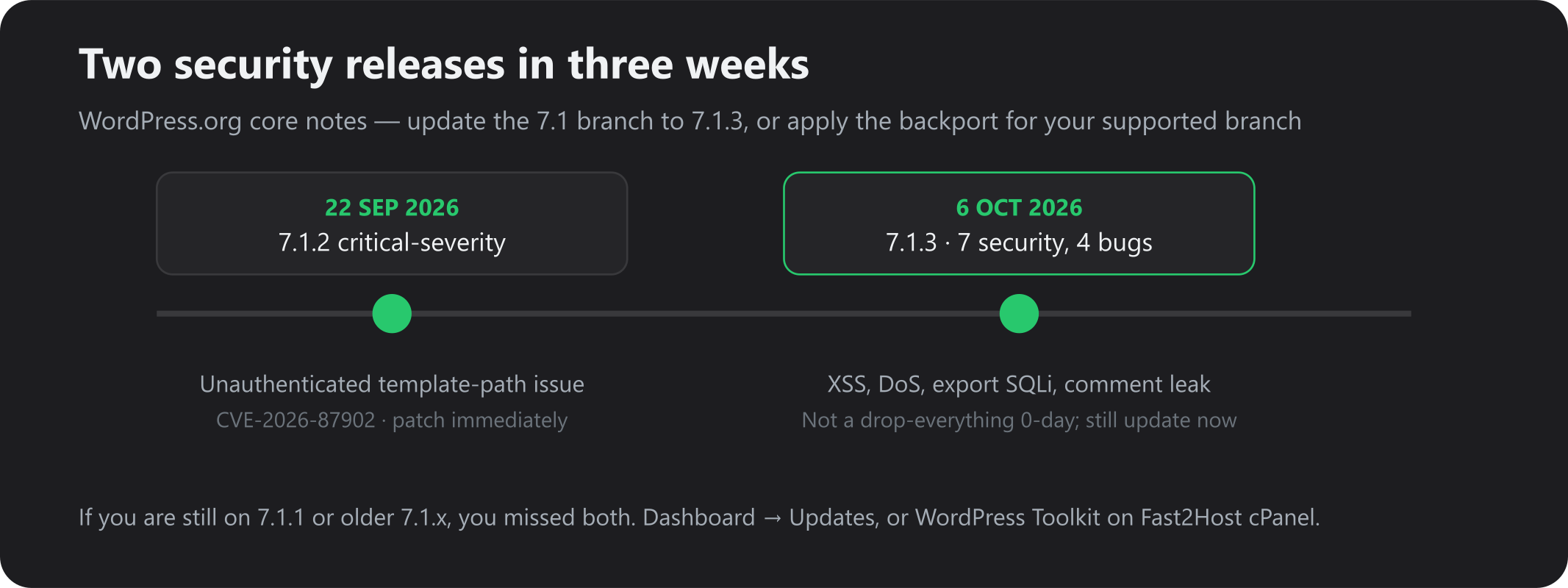
7.1.2 — critical-severity (do this if you skipped September)
WordPress described an unauthenticated issue in page-template resolution: under certain server and theme conditions, template lookup could include a local PHP file outside the active theme directories, which can lead to remote code execution. Details: CVE-2026-87902. We will not walk through exploit mechanics here.
Patched 7.1 line: 7.1.2 (and therefore 7.1.3). WordPress also shipped backports on supported older branches (through 4.7 as a courtesy). Only the latest WordPress version is fully supported — backports are a bridge, not a strategy.
7.1.3 — seven security fixes, four bugs (6 October)
WordPress.org lists:
| Area | What was fixed (high level) |
|---|---|
| Comments admin | Stored XSS via pending comments |
| HTTP helper | Denial-of-service in WP_Http::make_absolute_url() |
| Tools → Export | Second-order SQL injection in WXR export |
| Authors | Authors could sticky posts they should not |
| Comment feeds | Unauthenticated disclosure of comments on private / unpublished posts |
| Embeds | XSS in Imgur embeds |
| Hooks | Forgeable {status}_{type} hook parameters (action-name collision; relevant if a plugin passes raw status/type) |
Patchstack’s read of 7.1.3 is useful: update promptly, but this is not the same class of emergency as 7.1.2. Two issues start unauthenticated; several need Contributor/Author or an administrator running an export.
Bug worth knowing: 7.1.3 also addresses a critical (severity of the bug, not a CVE) image-upload fatal on hosts missing PHP’s DOM extension. If media uploads died after 7.0, this release is for you as well as for security.
What to install
| What you run today | Aim for |
|---|---|
| 7.1.0 – 7.1.2 | 7.1.3 |
| 7.0.x | Latest 7.0 security package that includes these backports (check Dashboard → Updates), then plan a move to 7.1 |
| 6.x / 5.x / 4.7+ | The backport build WordPress lists for that branch, then schedule a supported major |
| 4.6 or older | No security updates. Rebuild or migrate — do not “harden” a dead branch |
Always verify the installed version and the upgrade path WordPress offers you before you click Update. A jump from 5.8 to 7.1 is not a one-click security patch; it is a project (PHP version, theme, WooCommerce, page builder).
3. How to check your WordPress version
Pick one — they should agree:
- wp-admin — Dashboard → Updates, or the version in the footer (if that display is not hidden).
- WordPress Toolkit (Fast2Host cPanel / WordPress plans) — the site card shows core version and an update badge. Guide: WordPress Toolkit for cPanel.
- Front end — view source for
generatormeta (easy for attackers too; Toolkit hardening can hide it, which is fine).
Write the number down. “We updated last year” is not a version.
PHP: Toolkit shows PHP per install. 7.1 expects a current PHP 8.x line your plugins actually support. Change PHP in cPanel MultiPHP on a clone first if you are unsure.
4. Why outdated plugins and themes are dangerous
Core news is loud. Plugin CVEs are the daily grind. Abandoned “donationware”, nulled “Pro” zips and a page builder three minor versions behind are how most agency sites get a webshell.
Checklist
- Update everything with a current, trusted upstream.
- Delete unused plugins and themes (not “deactivate and forget”).
- Replace anything with no update in 12+ months, or a broken wordpress.org listing.
- Never install zip files from “nulled” shops.
- After updates, browse checkout, forms, membership login and wp-admin.
Toolkit Updates and Vulnerabilities (Patchstack / Wordfence intelligence, depending on Toolkit version) flag this without a separate scanner plugin. You can still run Wordfence or similar in wp-admin if you prefer — do not stack three overlapping security plugins.
5. How to secure administrator accounts with 2FA
Stolen wp-admin is still the shortest path in.
- Do not use the username
admin. - One person, one Administrator. Editors do not need
install_plugins. - Unique password in a manager — not the same as cPanel or email.
- Two-factor authentication on every Administrator (and Shop Manager on WooCommerce). Use a maintained 2FA plugin from wordpress.org, or your SSO if you have it.
- Limit login attempts / protect
wp-login.php(host WAF plus a small plugin, not five). - Turn off unused XML-RPC (Toolkit Security hardening). Keep it only if Jetpack or a mobile app truly needs it.
- Separate cPanel 2FA (control panel) from WordPress 2FA (site). Both.
6. How to configure automatic updates safely
Blind “update everything at 03:00” breaks WooCommerce. Never updating breaks the internet’s scanners.
Sensible Toolkit defaults (same table as our Toolkit guide):
| Component | Default for most live sites |
|---|---|
| WordPress minor / security | On (this is how 7.1.3 arrives if you already auto-update core) |
| WordPress major | Off until you have tested on staging |
| Plugins | Security auto where offered, or a weekly review |
| Themes | Manual unless you fully control the parent theme |
If Toolkit offers “deactivate vulnerable plugin instead of updating”, use it on client sites overnight — a broken checkout is better than an open RCE, and you can patch in the morning.
7. How to scan your website for vulnerabilities
Three layers, not one plugin:
- WP Toolkit → Vulnerabilities — known plugin/theme issues, with update or deactivate.
- Check WordPress Integrity — core files vs wordpress.org checksums; reinstall tampered core without touching content.
- Imunify360 on Fast2Host cPanel — malware and WAF at the account/server layer (cPanel CloudLinux).
Also: look at users you did not create, wp-content/uploads PHP files, unknown admin plugins, and outgoing spam (that is an abuse problem as well as a hack).
Integrity + Imunify is not a pentest. It is the scan you can actually run this afternoon.
8. Why off-site backups and restore tests matter
A backup you have never restored is a rumour.
On Fast2Host, daily Acronis backups sit in cPanel, separate from Toolkit snapshots. Treat Toolkit as quick WordPress undo and Acronis as account disaster recovery — Acronis Cyber Protect.
Do this once per quarter
- Note the last successful backup date in Acronis.
- Restore files + database to a subdomain (not over production).
- Load the restore, log in, place a test order if you have a shop.
- Write down how long it took.
If restore fails, fix the backup job before you need it for 7.1.4.
9. How to use staging before updating a live website
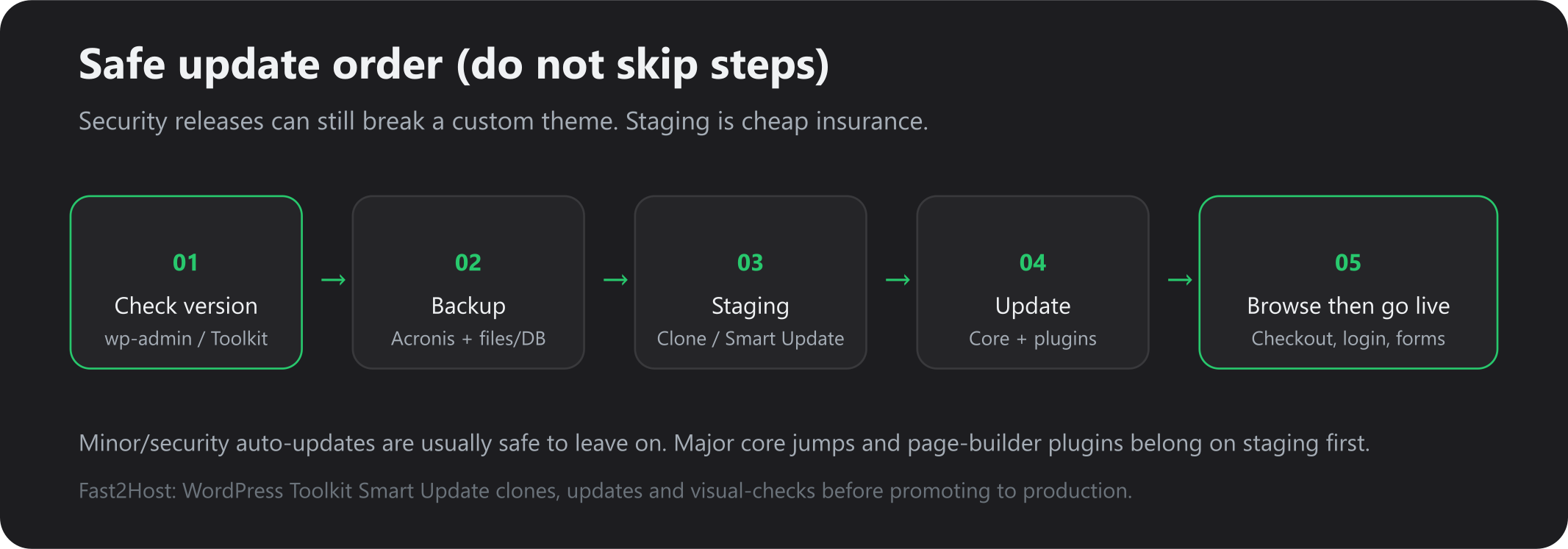
Security releases are still software. Page builders, WooCommerce gateways and custom functions.php can object.
Minimum staging path
- Backup.
- Clone to a subdomain (Toolkit Clone) or run Smart Update (clone → update → visual compare → promote only if it matches).
- Test: home, a post, search, contact form, cart, checkout, wp-admin, cron-ish jobs (subscriptions).
- Only then update production — or let Smart Update promote.
Agencies managing many installs: mass-harden and batch-update off-peak from Toolkit. Product detail: WordPress Toolkit.
Moving host at the same time as 7.1.3 is optional but tidy — migrate WordPress to a UK host with a staging cutover, not an in-place gamble.
10. A printable five-minute WordPress security checklist
Do this on every site you are responsible for. Print or copy into your runbook.
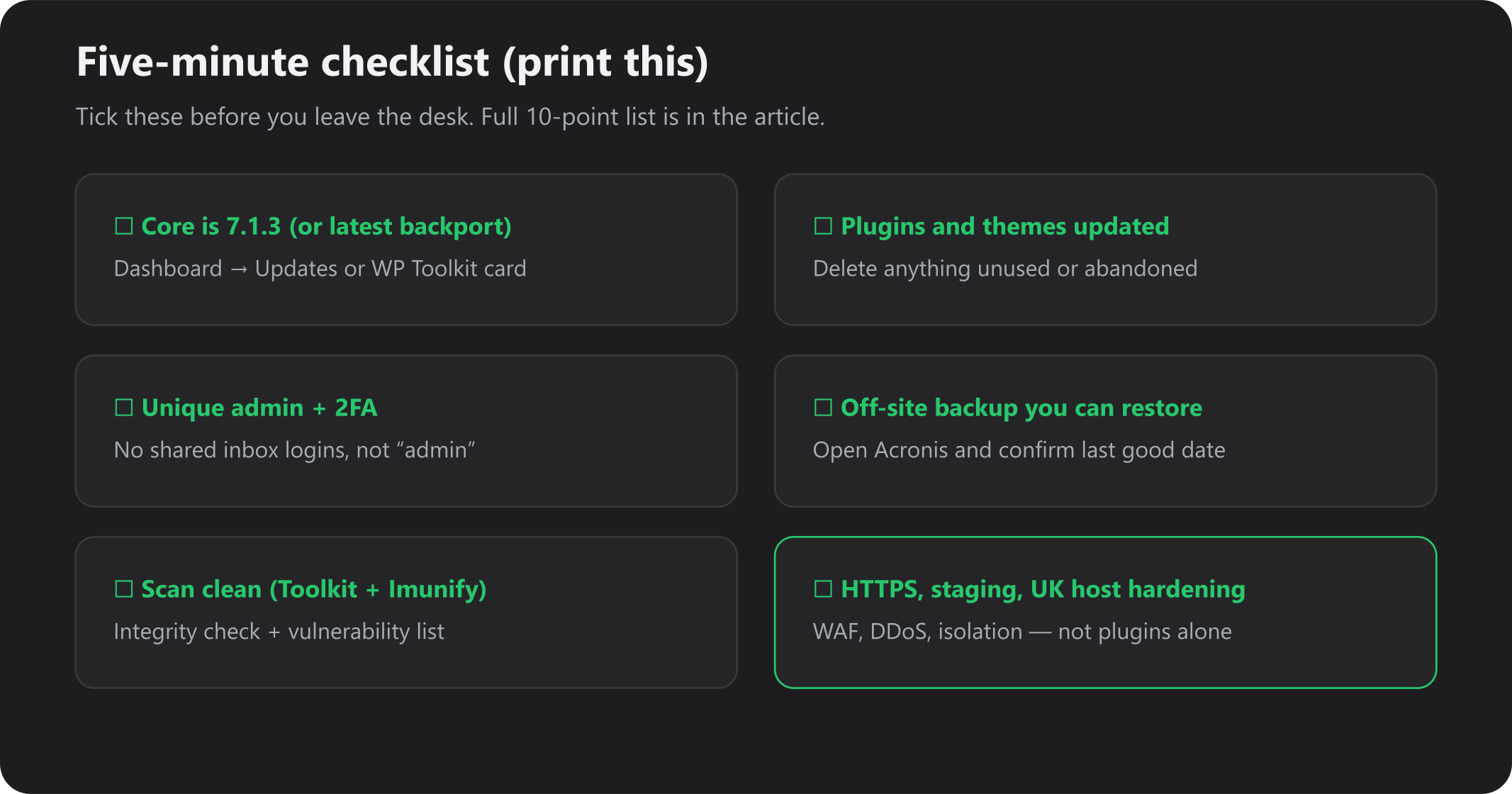
| # | Check | Done |
|---|---|---|
| 1 | Core is 7.1.3, or the official backport for my branch — version confirmed in Updates / Toolkit | ☐ |
| 2 | PHP version is supported by that core and my plugins | ☐ |
| 3 | Plugins updated; unused / abandoned / nulled items deleted | ☐ |
| 4 | Themes updated; extra themes deleted | ☐ |
| 5 | No admin user; Administrators have 2FA; roles least-privilege | ☐ |
| 6 | Minor/security auto-updates on; majors only after staging | ☐ |
| 7 | Toolkit (or equivalent) vulnerability scan clean or tickets raised | ☐ |
| 8 | Integrity check passed | ☐ |
| 9 | Off-site backup exists; restore tested this quarter | ☐ |
| 10 | Staging/Smart Update used for anything bigger than a security bump; HTTPS, WAF, DDoS, UK isolation in place | ☐ |
Hosting row (still part of WordPress security): AutoSSL / HTTPS, Imunify360 or equivalent WAF, account isolation (CloudLinux), tested backups, 24/7 humans. Plugins cannot replace that. Compare WordPress hosting and cPanel. SSL context: free vs paid certificates.
FAQs
What WordPress version should I be on in October 2026?
On the 7.1 line: 7.1.3. Older supported branches should show a security package in Dashboard → Updates. Confirm your listed target before updating.
Is 7.1.3 as urgent as 7.1.2?
7.1.2 was a critical-severity core fix. 7.1.3 is a broader security and maintenance release. Install both (7.1.3 includes being past 7.1.2). Do not skip 7.1.3 because “we already patched in September”.
Will automatic updates get me 7.1.3?
If minor/security auto-updates are enabled and the site can reach wordpress.org, usually yes. Check the version anyway.
Can Fast2Host apply this for me?
Yes — open a ticket. We will not blindly major-upgrade a shop without a backup and a staging pass.
I am on WordPress 5.x / 6.x.
Apply the backport WordPress offers for that branch immediately, then plan a supported major on staging. PHP and plugins must move with you.
Next step
Use the five-minute table on every live site this week. Use Toolkit for the operations you would rather not do over FTP.
- WordPress hosting — WP Toolkit, Smart Update, Imunify360, Acronis, UK support
- WordPress Toolkit guide — hardening, auto-updates, integrity, clones
- cPanel CloudLinux · Acronis backups · Migrate to a UK host
- Open a ticket if you want Cambridge engineers on updates, malware clean-up or a secure migration