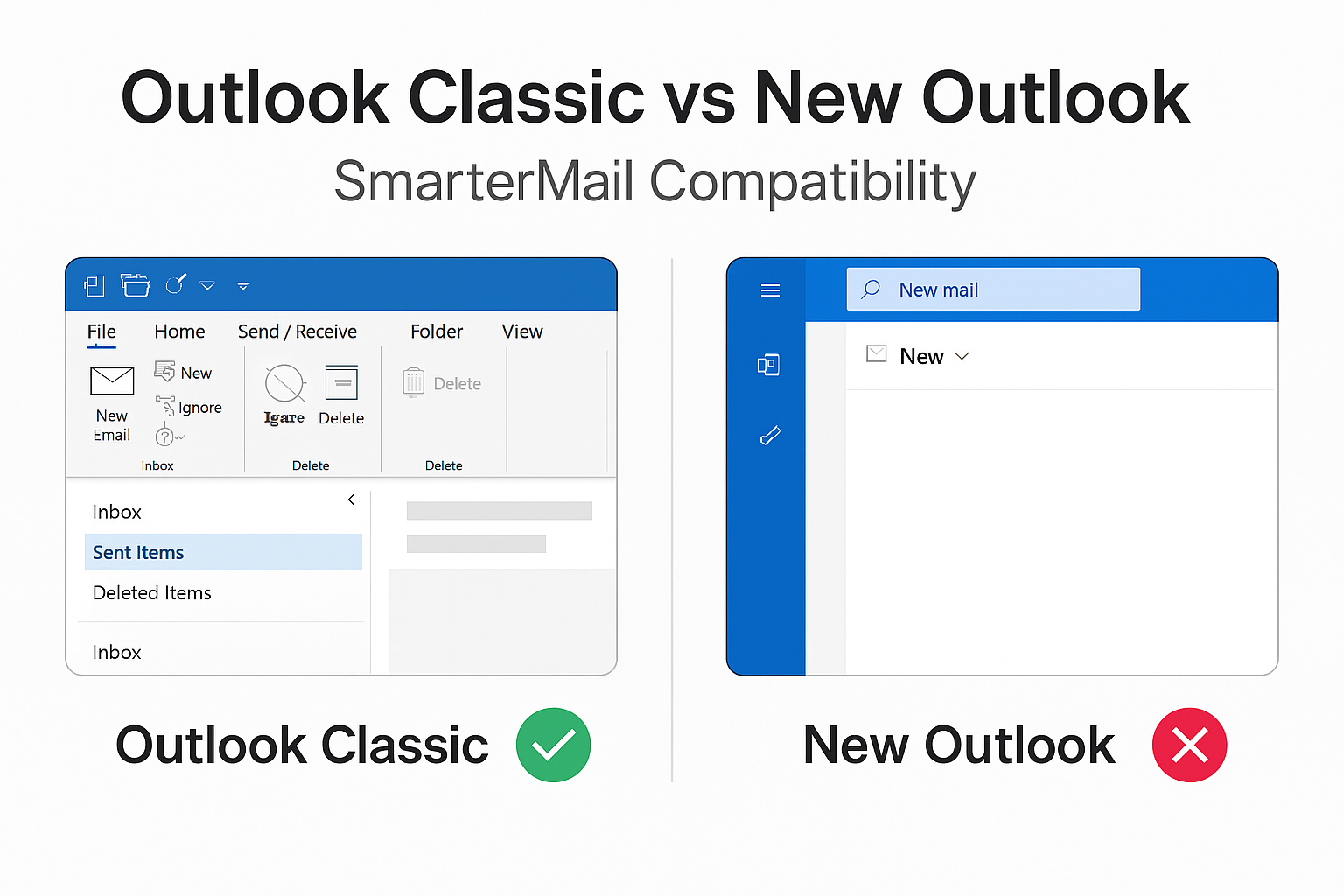
Outlook classic vs new Outlook and SmarterMail compatibility
New Outlook for Windows offers a modern experience but removes or limits protocols SmarterMail relies on. Outlook Classic remains the recommended choice for full mail, calendar, contacts, and reliable push email with SmarterMail.
Key differences that affect SmarterMail
| Area | Outlook Classic | New Outlook for Windows |
|---|---|---|
| Protocols for third‑party mail servers | MAPI, IMAP, POP, SMTP, EAS | IMAP, SMTP (no MAPI/EAS for third‑party) |
| Push email (IMAP IDLE) | Supported | Limited or unavailable |
| Calendars and contacts (server sync) | Full via MAPI/EAS | Limited for non‑Microsoft accounts |
| Local data files | PST/OST supported | No PST; limited local storage |
| Add‑ins | COM/VSTO supported | Limited modern add‑ins |
| SmarterMail compatibility | Fully compatible | Not recommended |
Why new Outlook doesn’t work well with SmarterMail
- Missing MAPI/EAS: No full sync for calendars, contacts, tasks, or shared folders.
- Reduced IMAP behavior: IMAP IDLE push is unreliable or absent; folder updates can be slow.
- No POP/PST workflow: Legacy POP setups and local PST archiving aren’t supported.
- Limited add‑ins and controls: Advanced account settings and COM add‑ins are restricted.
Recommendations
Use Outlook Classic: Full SmarterMail compatibility via MAPI, IMAP, and SMTP with reliable sync and offline support.
If you must use New Outlook: Expect basic IMAP/SMTP mail only; calendar and contacts will not sync from SmarterMail.
Consider alternatives: Thunderbird with CalDAV/CardDAV add‑ons or SmarterMail Webmail for full feature access.
How to stay on Outlook Classic
- Hide the toggle: Disable or ignore “Try the new Outlook” in the app; admins can remove it via policy.
- Block new Outlook via policy: Use Microsoft 365 admin or Group Policy to keep managed PCs on Classic.
- Deploy correct channel: Use Microsoft 365 Apps channels that include Classic Outlook; avoid Insider channels that default to New Outlook.
FAQs
Not fully: Without MAPI/EAS and reliable IMAP IDLE, New Outlook can’t match Classic’s integration. You’ll get basic IMAP mail at best.
Unknown timeline: Microsoft is iterating on New Outlook, but there’s no confirmed schedule for full third‑party protocol parity. Plan on Classic for dependable SmarterMail use.
Possibly: Advanced Outlook features (MAPI/EAS) require the appropriate SmarterMail licensing. Standard IMAP/SMTP works without special licensing but won’t sync calendars/contacts.