Enable Two-Factor Authentication (2FA) in cPanel & WHM
Two-Factor Authentication (2FA) adds an extra layer of security to your cPanel and WHM accounts by requiring a temporary verification code during login.
What is Two-Factor Authentication?
2FA protects your hosting account using two forms of verification:
- Something you know - your password
- Something you have - a security code generated by your authenticator app
Even if somebody discovers your password, they cannot access your account without your authentication device.
Requirements
- Access to your cPanel or WHM account
- An authenticator application installed on your mobile device or desktop
Recommended Authenticator Apps
| Application | Supported Devices |
|---|---|
| Microsoft Authenticator | iPhone / Android |
| Google Authenticator | iPhone / Android |
| Authy | iPhone / Android / Desktop |
Set Up 2FA in cPanel
Step 1 - Open Two-Factor Authentication
Log in to your cPanel account and locate the Security section. Click Two-Factor Authentication.
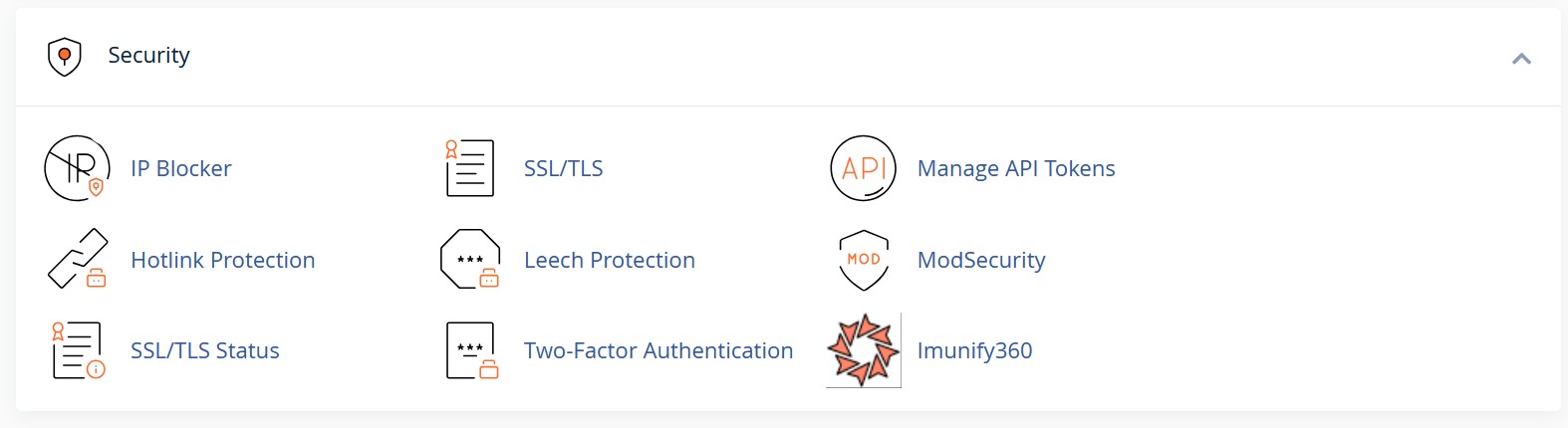
Figure 1: Two-Factor Authentication option in cPanel
Step 2 - Configure 2FA
Click Set Up Two-Factor Authentication. A QR code and manual setup details will appear on-screen.
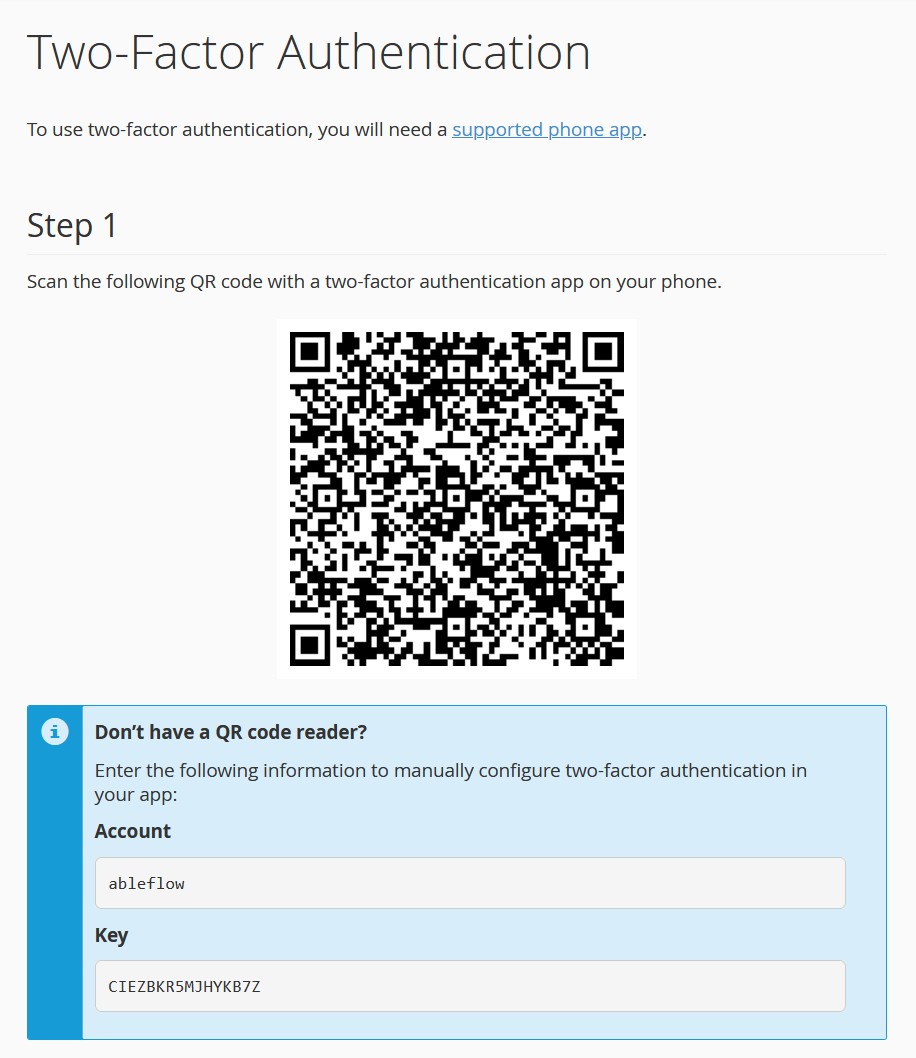
Figure 2: QR code used to link your authenticator app
Open your authenticator app and scan the QR code.
If you cannot scan the QR code, you can manually enter the provided setup key into your authentication app.
Step 3 - Verify and Enable
Enter the six-digit verification code generated by your authenticator app and click Configure Two-Factor Authentication.
Set Up 2FA in WHM
- Log in to your WHM account
- Navigate to Security Center > Two-Factor Authentication
- Enable the Two-Factor Authentication Security Policy
- Open the Manage My Account tab
- Click Set Up Two-Factor Authentication
- Scan the QR code or manually enter the setup key into your authenticator app
- Enter the generated verification code and complete setup
Frequently Asked Questions
Need Help?
If you experience any issues enabling or using Two-Factor Authentication, our support team will be happy to help.